
Latest Technology News & Guides
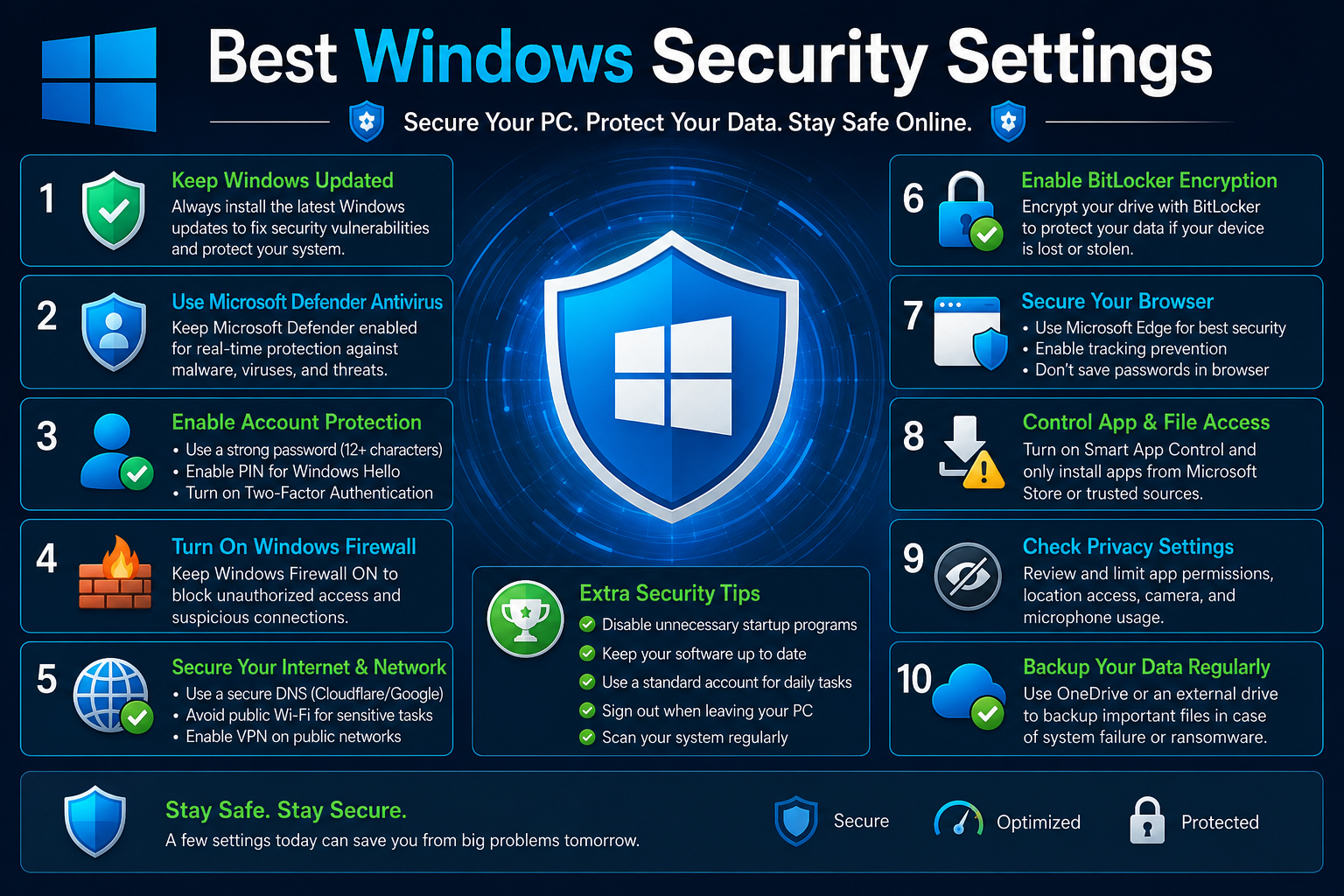
Windows security is more important than ever in 2026. Cyber threats such as ransomware, phishing attacks, spyware, and malware continue to target personal computers every day. Fortunately, Windows 10 and Windows 11 include powerful built-in security features that can protect your PC without installing expensive third-party software.
Whether you use your computer for work, gaming, online banking, or studying, configuring the right Windows security settings can greatly reduce the risk of viruses and unauthorized access. This guide explains the most important Windows security settings every user should enable.
Microsoft Defender provides real-time protection against viruses, spyware, ransomware, and malicious software. Keep real-time protection enabled at all times.
Windows Defender Firewall helps block unauthorized network access and protects your computer from online attacks.
Security updates fix newly discovered vulnerabilities. Always allow Windows to install updates automatically.
Controlled Folder Access helps protect important files from ransomware attacks and unauthorized modifications.
Create strong passwords using letters, numbers, and special characters. Avoid using the same password for multiple accounts.
Windows Hello allows secure sign-in using fingerprint, facial recognition, or PIN authentication.
Microsoft SmartScreen helps block malicious websites, phishing pages, and unsafe downloads before they reach your computer.
Device Encryption protects your personal files if your laptop is lost or stolen by encrypting stored data.
Run Quick Scan weekly and Full Scan monthly to detect hidden malware before it causes damage.
Use OneDrive or an external drive to keep backups of important documents, photos, and projects.
Correct Windows security settings reduce malware infections, improve privacy, protect personal information, prevent ransomware attacks, and keep your computer running safely. Most of these protections are available free with Windows 10 and Windows 11.
Many users disable antivirus software, postpone Windows updates, or download software from unknown websites. These practices significantly increase the risk of malware infections and data theft.
These security recommendations are suitable for students, office workers, gamers, business owners, freelancers, and anyone using Windows daily. Even basic security settings can prevent many common cyber threats.
Windows includes powerful built-in security tools that are often overlooked. By enabling Microsoft Defender, Firewall, Windows Update, SmartScreen, and ransomware protection, you can greatly improve your computer's security without spending extra money.
Review your Windows security settings regularly and keep your operating system updated to stay protected against the latest online threats in 2026.